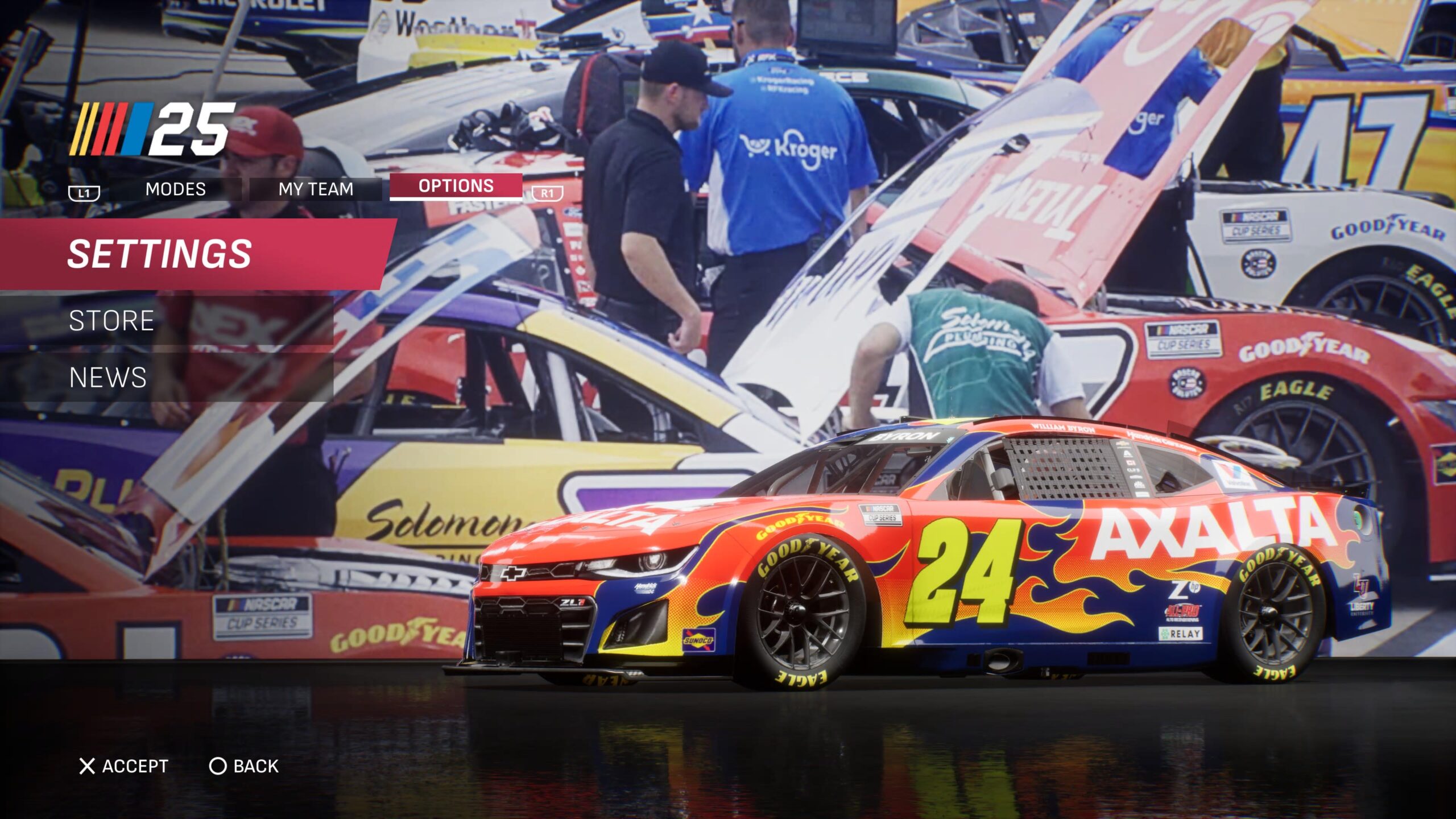
NASCAR 25 Guide for Understanding In-Game Settings
What’s Happening? Perhaps more than any past NASCAR game, in the early life cycle of iRacing’s NASCAR 25 console game, players…
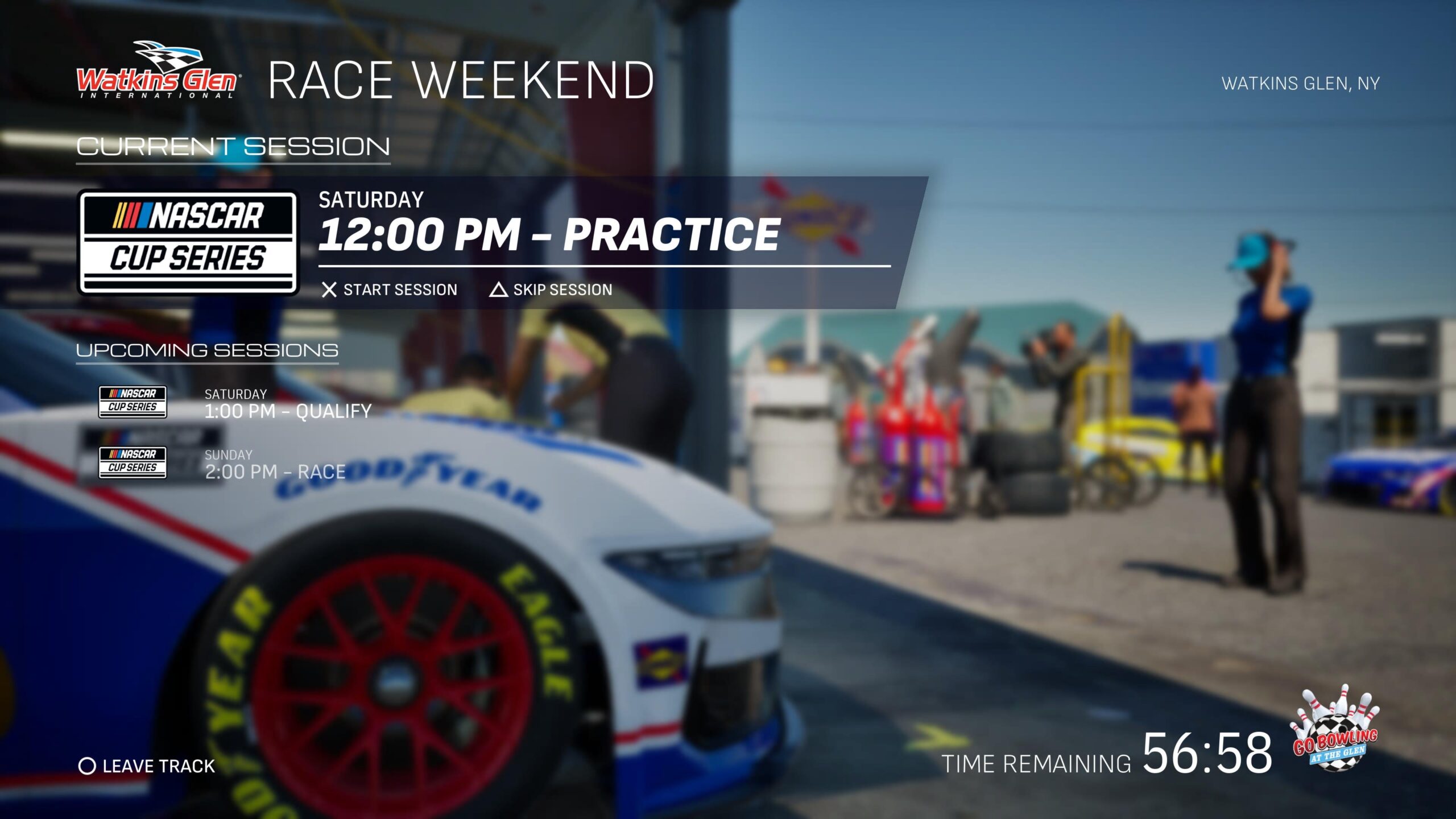

iRacing released its first NASCAR console game, NASCAR 25, earlier this week. While no console game can provide players with a perfect NASCAR experience, here are five ways to enhance the realism and immersion of your NASCAR 25 experience.
What’s Happening? Perhaps more than any past NASCAR game, in the early life cycle of iRacing’s NASCAR 25 console game, players…
Okay, this one may be too simple, but hear us out.
Fresh out of the box, NASCAR games offer the option to turn off cautions. Of course, in the past, you could turn them off and wreck the field or explore the track, but for those who want to get the real experience, strict yellow and black flags are necessary.
Unfortunately for those who may prefer a shorter race, specifically less than 7%, this means you will need to bump up the length of your races, but with NASCAR 25’s AI model, which has some of the best-looking AI wrecks in a recent NASCAR game, having full flags can make for a thrilling and sometimes frustrating race.
This is another simple fix, but the ability to tweak the effect the draft has on your car helps bring you back to reality when playing NASCAR 25.
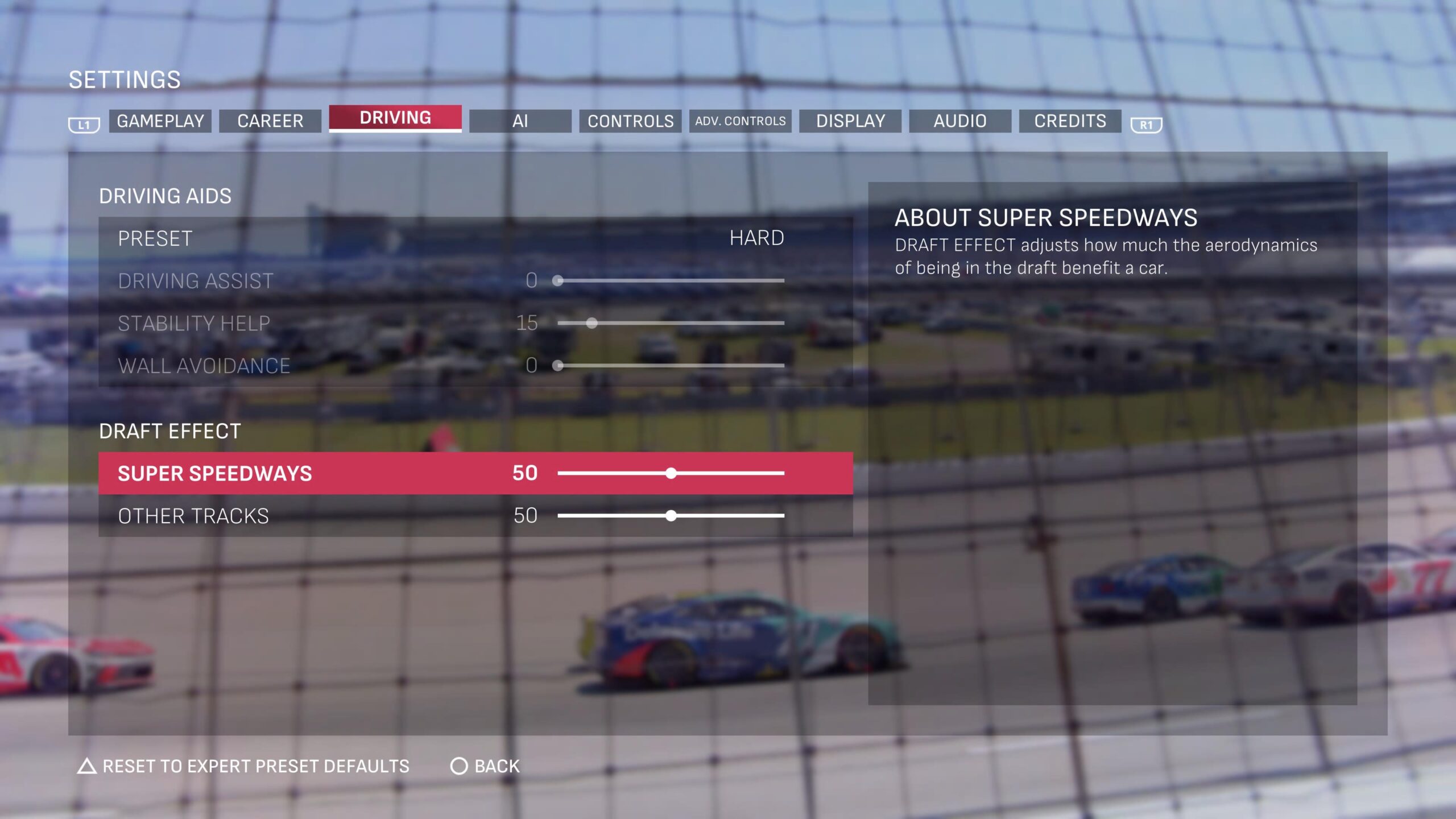
Look, drafting is obviously a major factor in NASCAR, but in past NASCAR games, seeing the Draft Meter light up at certain tracks can take away from your experience. At times, an in-game draft is more of an unnecessary assist rather than a feature based on realism.
While you may want this higher on superspeedways, you may want it lower on smaller tracks, and NASCAR 25 gives you the chance to do so. Under the Driving in the Settings Menu, there are two sliders under Draft Effect: one that edits the effect of the draft at superspeedways and one that does so at all other tracks.
For long-time NASCAR gamers, this is one of the most well-known adjustments to make to add to the realism of a short race. Nonetheless, this setting can easily be overlooked by anyone playing NASCAR games for the first time.
To find this setting, go to the Quick Race and Championship Settings options under the Gameplay tab in the Settings menu. After selecting your race length, proceed to Tire Wear/Fuel Consumption. Under this slider, you have four options: Normal, 2x, 3x, and 4x, each of which increases the rate at which your tires wear.
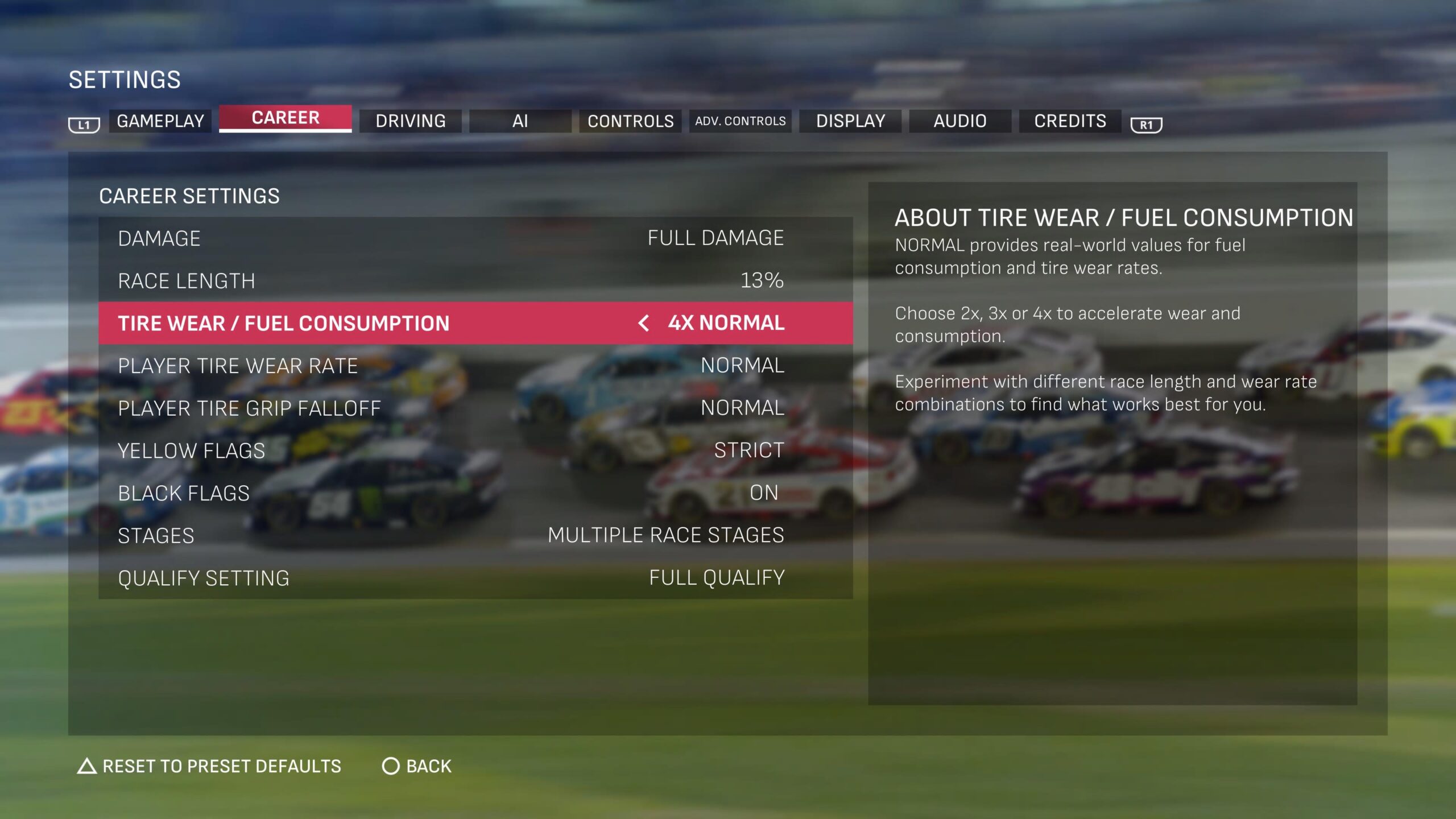
Combined with an applicable race length, such as 2x and 50% race length, you will have a longer, yet more realistic race, featuring multiple green flag stops, stage breaks, and sufficient on-track time to manage lap traffic.
Beyond just having green flag stops, for races like Bristol, which feature the new, softer Goodyear tire in the real-world of NASCAR, you can even bump this up to simulate the high wear of these tires, regardless of the race length.
Finally, this setting is combined with realistic flag rules that can set up some interesting strategies, such as short-pitting a stage, a surprise pit road speeding penalty, or a late-race fuel run.
One complaint that fans had from early footage of NASCAR 25 was the somewhat aggressive-looking stability of AI cars, as a video featuring an Xfinity Series race at Daytona showed a rather difficult attempt at a right rear hook.
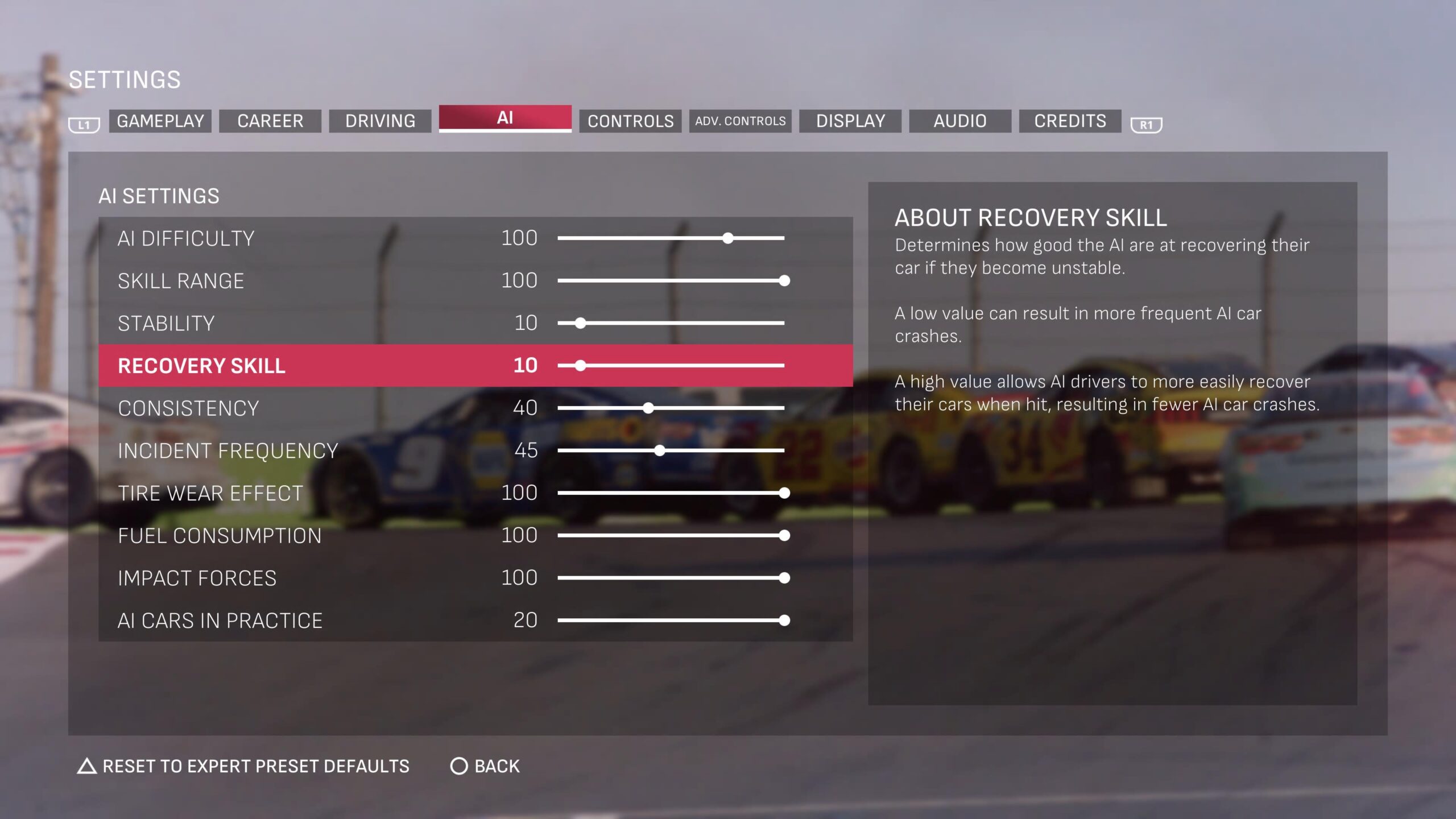
Well, fortunately, iRacing has a tweak for this. Under the AI tab in the Settings Menu, you will find two sliders that change how an AI car recovers from these incidents.
Stability affects how stable an AI car is when in contact with you, so the higher the stability, the less likely a car is to spin out upon contact. The higher the slider is, the easier the car will spin. Some players have suggested the 15-30 range as realistic for this slider.
The other is Recovery Skill, which is self-explanatory, essentially, how well they recover when losing their car. While this would vary amongst drivers in the real world, some suggest that the 30 to 50 range is a good number to have this slider at.
While you’re editing the recovery and stability of your AI drivers, take a deeper look at the AI tab, as more options can add to the raceday experience.
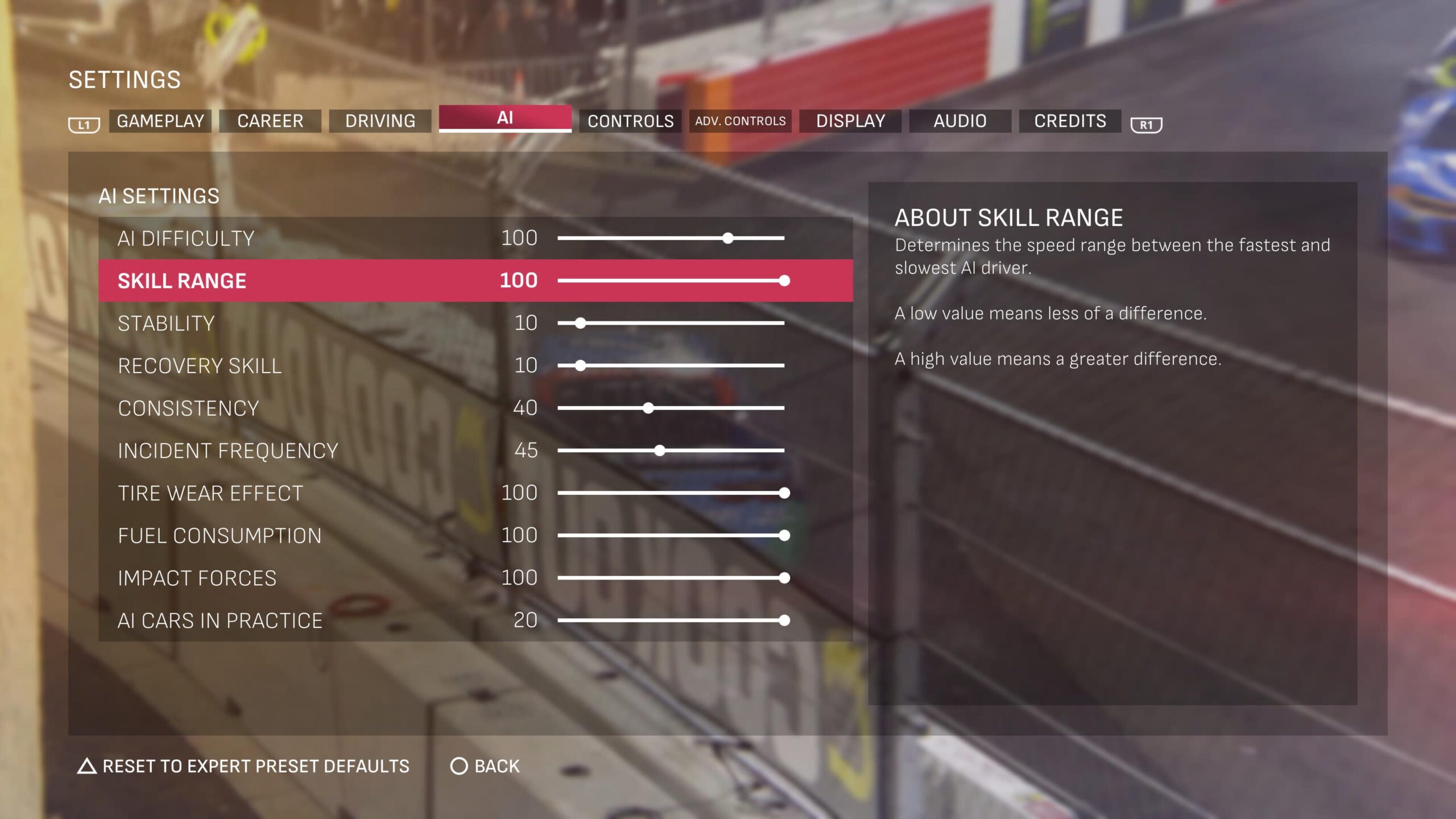
For example, if you feel that your AI opponent’s pit strategy is a little better, or a little worse than yours, and you want to narrow the competition, tweak the Tire Wear Effect and Fuel Consumption sliders.
If you feel like some drivers, not to name any names, are sticking close to the back at short tracks and intermediates, increase the skill range, which will spread out the field, resulting in more lap traffic.
This game has it in regards to your AI opponents; they even included a slider to increase the number of cars on track during your practice session, though this can make some sessions more frustrating than others.
What do you think about this? Did you see any settings we missed? Let us know your opinion on Discord or X. Don’t forget that you can also follow us on Instagram, Facebook, and YouTube.