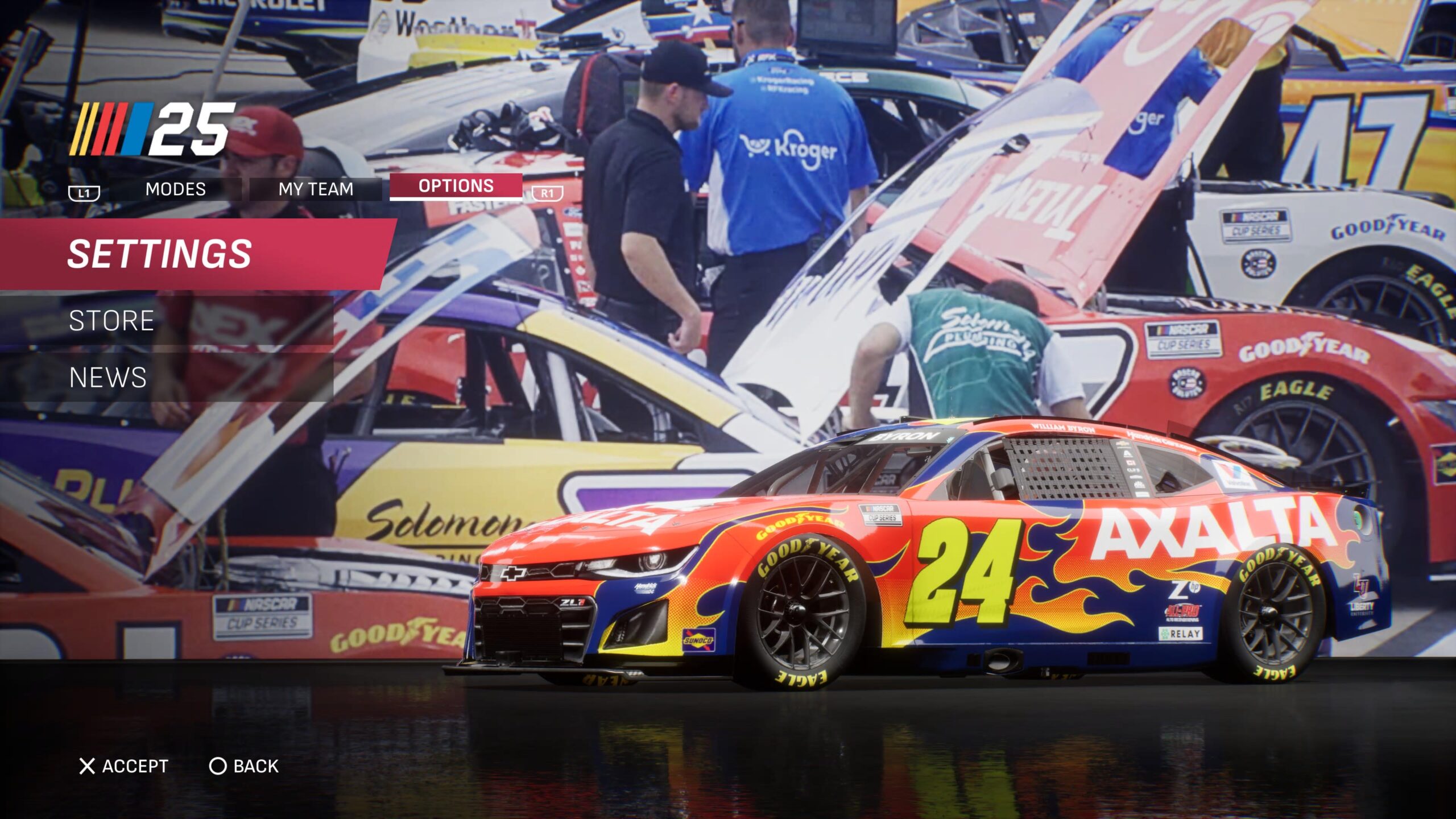


Perhaps more than any past NASCAR game, in the early life cycle of iRacing’s NASCAR 25 console game, players have learned that the game’s in-game settings are just as important as how they set up their car.
This was something that the game’s developers and test players, such as Ty Majeski of ThorSport Racing, had pointed out prior to the game’s Early Access and official launch.
Upon opening NASCAR 25, the eight tabs of in-game settings provide players with a comprehensive list of options to customize the game’s play, feel, and even sound to their exact preferences. So, what do these settings do, and how can they affect your day at the track?

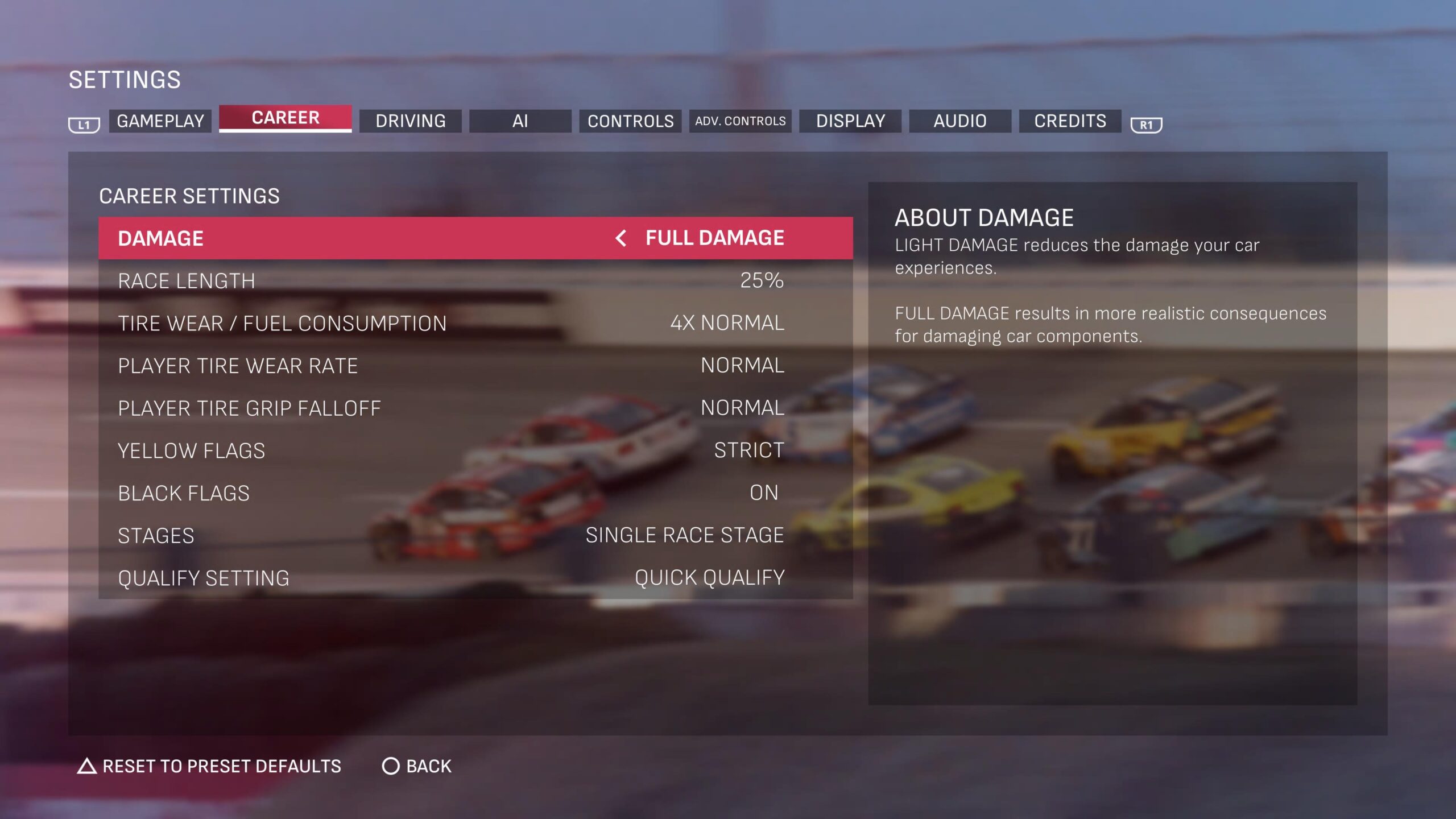
Under the “Gameplay” tab, there are also in-depth race settings. These include the usual options, such as race length, damage level, rules (including caution and black flags), and tire and weekend setup, as well as the method of qualification you prefer.
NASCAR 25 features two qualifying levels: Quick and Full Qualify. Quick is a one-lap, one-round format at all tracks, while Full Qualify is based on NASCAR’s official rules. For those who prefer a more traditional racing experience and prefer options like Quick Qualify, NASCAR 25 also allows them to remove stages from races.
A fan-favorite feature that returns in NASCAR 25 is the option to increase tire wear and fuel consumption to levels of 2x, 3x, and 4x. When paired with the proper race length, for example 25% race with 4x tire wear and fuel consumption, tweaking these settings can create an accurate race with a realistic number of green flag pit stops.
Players can also adjust the tire wear rate and grip falloff to enhance or reduce the challenge of a race.
It is essential to note that these settings, including rules, tire wear, and stage editing, are only available for races with a duration of 7% or longer.
These settings under the gameplay tab are for your quick race and championship mode, though it will automatically make similar changes to your career mode settings under the “Career” tab.
For any veterans of NASCAR gaming, NASCAR 25’s Gameplay settings are familiar, but with a few extra settings.
For all modes, there are preset difficulties, which range from Casual to Normal to Skilled to Expert to Advanced. Each changes the other gameplay settings, but players can re-adjust these settings based on preference while maintaining their preferred difficulty.
Two of the gameplay settings that can be adjusted by changing your difficulty are Transmission, which can be set to automatic or manual, and brake smoothing. Brake smoothing can help keep your car from spinning out under certain conditions, such as heavy braking or leaving the track surface.
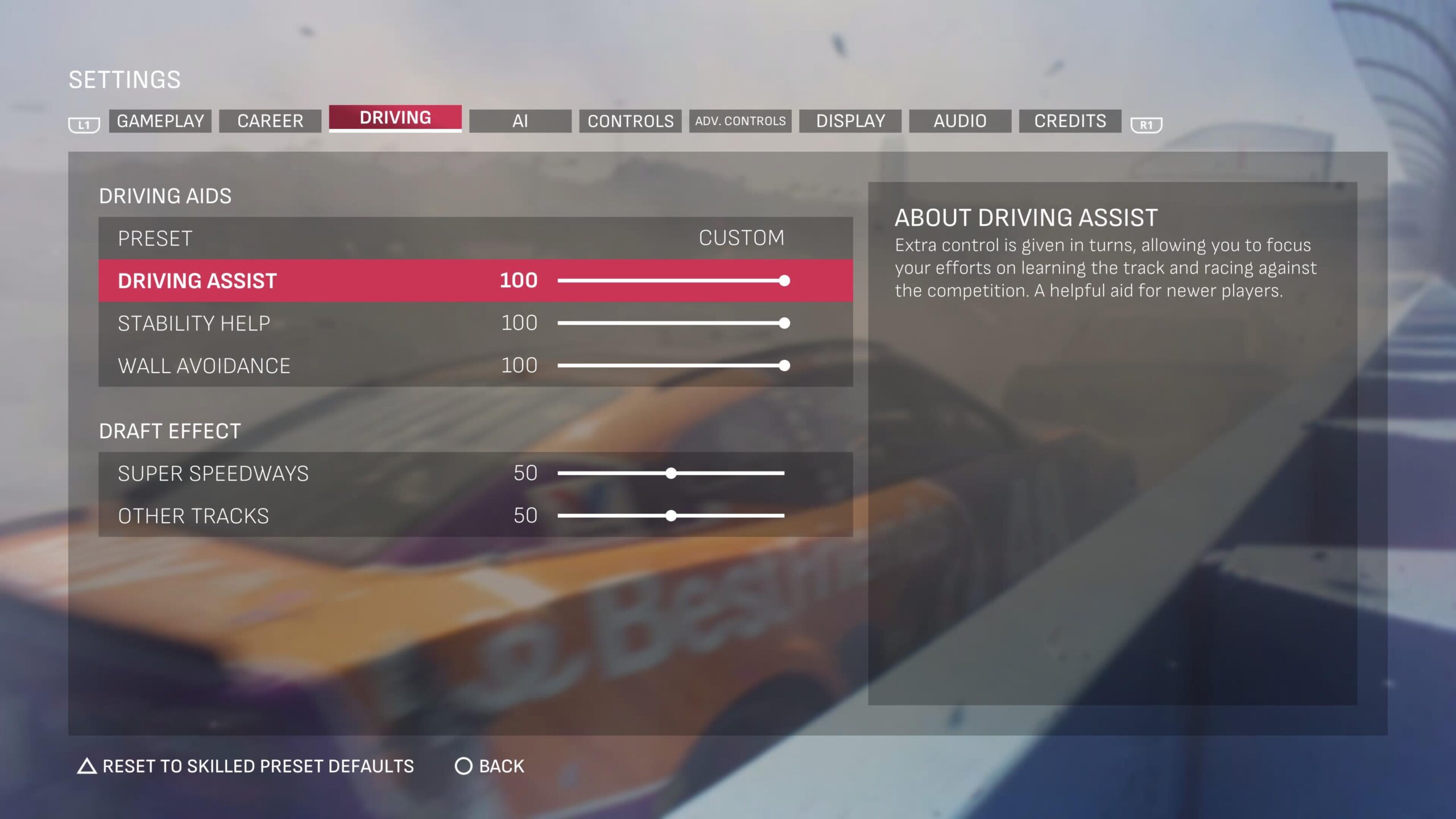
Additional features, such as brake smoothing, can be found under the “Driving” tab and are adjustable on a 0-100 scale.
These include driving aids, such as Driving Assist, which helps players learn the feel for their car by allowing them more control over its actions; Stability Help, which can help players avoid spinning out; and Wall Avoidance, which works as a buffer should a player be headed for the wall.
Switching between transmissions is really up to the player’s choice. For beginners, it’s best to practice with manual, especially if you are playing on a controller. For wheel users, a manual may come more naturally, though it’s really a matter of preference.
One final piece of the puzzle provided in NASCAR 25 is the ability to adjust the drafting effect. Of course, in the world of NASCAR, the draft is significant at certain tracks and largely irrelevant at others.
In particular, in NASCAR 25, players can adjust how the draft benefits cars on track for both superspeedways and other tracks in-game. So, say you find the draft over the top at Indianapolis Motor Speedway, you can tune down the Other Tracks option to fix this.
The level of AI racing in NASCAR 25 has received several positive reviews, claiming it surpasses that of any past NASCAR game. Nonetheless, as with any computer-controlled opponents in a racing game, the AI in NASCAR 25 is not perfect.
To address some of this, iRacing offers in-depth AI settings that allow players to tune the AI to suit their preferences, ranging from more competitive to more realistic or even more enjoyable racing opponents.

Among these settings are the usual options you would see in past NASCAR games for their CPU or AI races, such as AI Difficulty, on a scale of 85 to 105, and settings that are similar to players’ own in-game settings, such as AI Stability and AI Recovery (specifically in regards to contact). In contrast, the Impact Forces option determines how players are affected by contact with AI on their end, in this case, the higher the number, the more crucial the impact.
But, where NASCAR 25 takes the cake is the ability to edit AI Skill Range, which determines how competitive drivers are based on their ratings, and Consistency, which makes drivers more consistent in their on-track speed and lap times.
The game even allows users to edit the level of Tire Wear and Fuel Consumption AI opponents have during a race on a 0 to 100 scale. Both of these settings can impact green flag pit strategy and tune how AI drivers race you as your tires wear throughout a green flag run in single-player and career modes.
Finally, some options can affect the outcome of your race or the outcome of your pre-race practice session.
First, the player can adjust the incident frequency of AI drivers from 0 to 100, with higher numbers causing more frequent accidents. This can, of course, impact the cautions and strategy of a race or be fun to experiment with at Daytona with cautions turned off (just an idea).
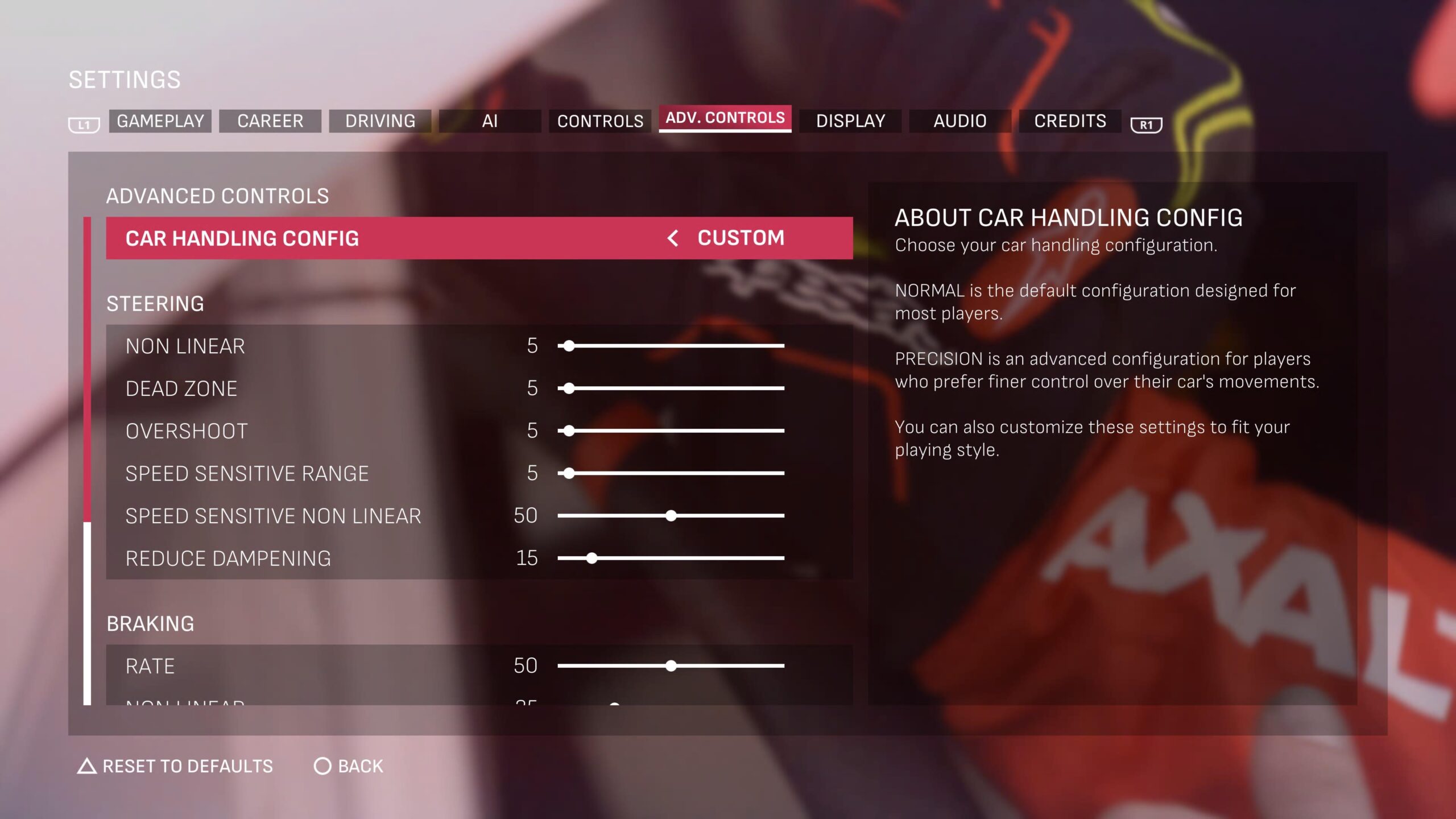
At one point in NASCAR gaming, control settings just meant button mapping, something low stakes for most players and crucial for hardcore racers. For example, do you want to accelerate with your right trigger or the A button?
NASCAR 25, of course, allows for different controller configurations. However, there is no custom button mapping or vibration feedback settings. It is worth noting, however, that vibration has been hit or miss for some users since the early access launch last week.
However, this time around, for players struggling to get a hold of their car, regardless of their level of experience, the “Advanced Controls” (seen in-game as “Adv. Controls”) tab in the game’s settings is crucial.
To customize these, ensure that you switch Car Handling Config to Custom. These settings can be tricky and are based on how you want the car to react to your input on the controller.
Of course, there is nothing wrong with testing one of the game’s preset options, such as precision or normal, before sitting down for a long test session and tweaking these settings.
Less crucial to your gameplay experience, but better for immersion, are the game’s presentation settings. These options can be found under the “Gameplay” and “Audio” tabs in the game’s settings menu.

Under gameplay, players can toggle on and off the game’s in-game car identifiers, which are the bars that show who is in front of you and their current position. You can also toggle on and off raceday cutscenes, with options for all modes, just career, and no cutscenes at all.
For users playing with a wheel, you can even edit your preferred Dash Style for the NASCAR Cup Series and toggle the game’s digital steering wheel on and off.
Under the audio settings, players can adjust the volume for in-game clips, such as Dale Jr. Download clips in career mode, the menu music, and toggle music while you’re at the track.
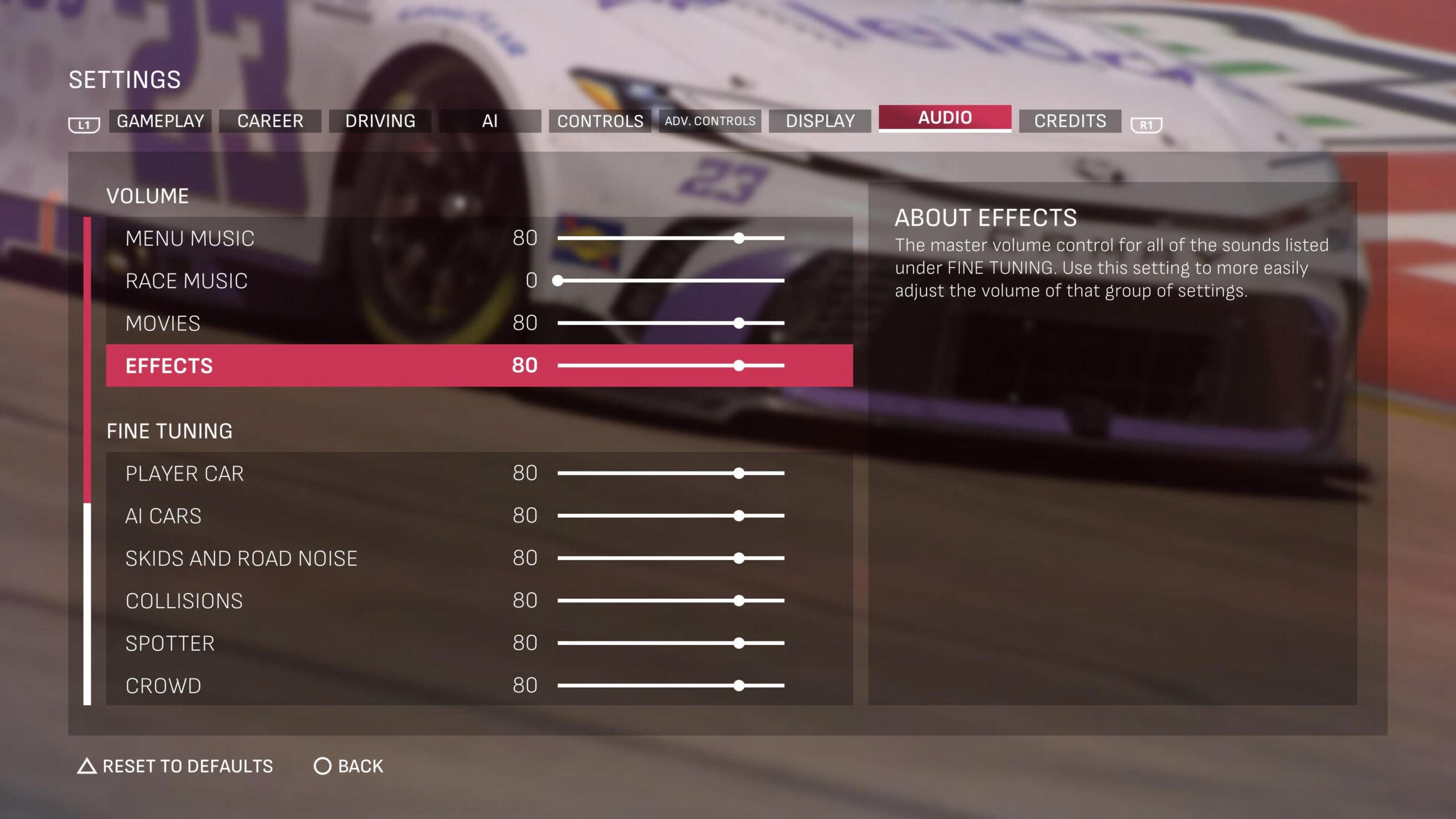
There are also in-depth settings, such as adjusting the volume of your or AI cars, crowd sounds, menu interaction sounds, and even your spotter, which you have two real-life choices for, both of which can be changed under this tab in T.J. Majors and Josh Williams.
If you would like to turn down all these settings, the Effects slider serves as a master switch for all in-game sounds.
Want to share your preferred NASCAR 25 Settings? See something we missed? Join the discussion on Discord or X, and remember to follow us on Instagram, Facebook, and YouTube for more updates.